
Download Master PDF Editor – Free, Secure PDF Editing Tool for Windows, macOS, Linux
Overview
Master PDF Editor is a freemium PDF solution that blends an intuitive interface with a surprisingly deep toolset. Whether you need to view, annotate, create, or edit PDFs, the software delivers a seamless experience on desktop platforms. The program shines when handling interactive PDF forms – you can add or modify buttons, text fields, checkboxes, and even attach JavaScript event handlers for automatic calculations and data validation.
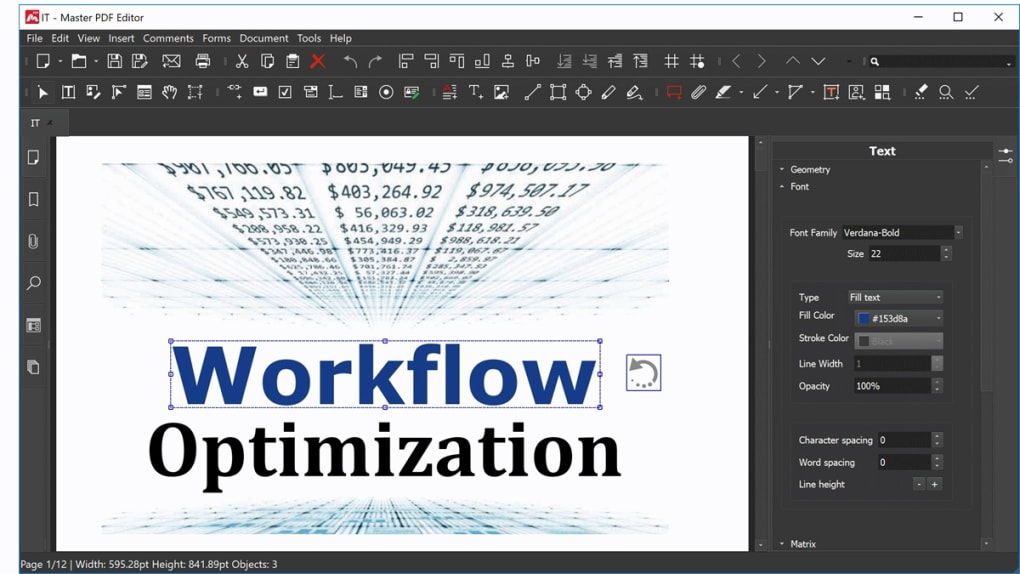
Beyond form work, Master PDF Editor lets you edit text, insert images, manipulate vector objects, and apply rich annotations such as sticky notes, measurement tools, and shape drawing. Its built‑in Optical Character Recognition (OCR) turns scanned pages into searchable, editable text, which is a major advantage for users who still rely on paper documents. The application also supports PDF bookmarks for easy navigation, and robust digital‑signature capabilities that work with standard certificate authorities.
While the free version adds a watermark to saved files, the core editing, annotation, and form features remain fully functional, giving users a chance to evaluate the software before upgrading to the paid licence.
Key Features
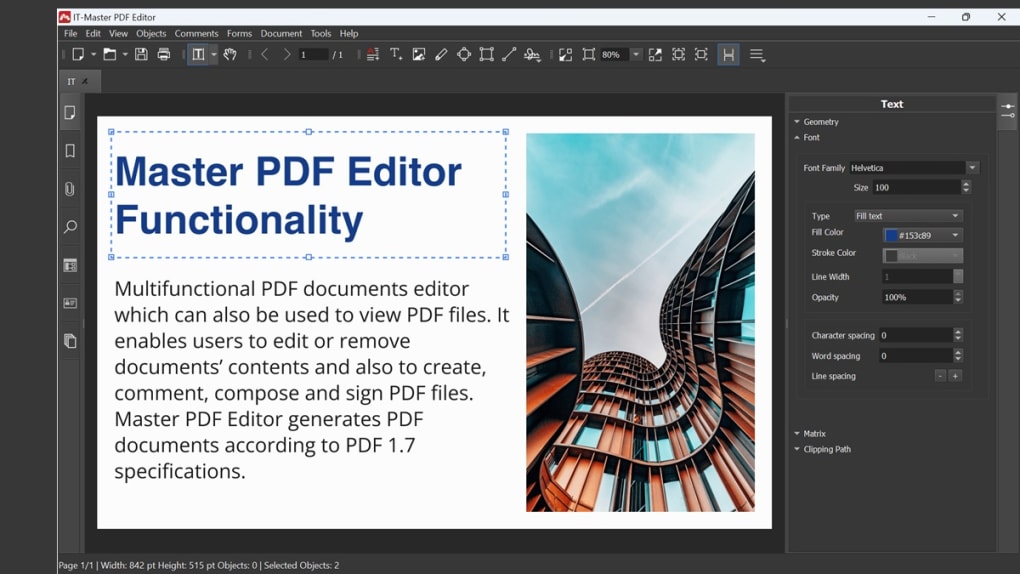
- Advanced Text Editing – edit existing text, add new paragraphs, and apply fonts, sizes, colors, and alignment without breaking the original layout.
- Object Manipulation – move, resize, rotate, or delete images, shapes, and vector graphics directly on the page.
- Form Builder & JavaScript Support – create interactive forms, insert buttons, checkboxes, dropdowns, and embed custom JavaScript for calculations and validation.
- Rich Annotation Toolkit – sticky notes, highlights, underlines, strikethroughs, measurement rulers, and shape drawing tools for detailed reviews.
- Optical Character Recognition (OCR) – convert scanned PDFs or image‑based files into searchable, editable text in multiple languages.
- Bookmark Management – generate, edit, and delete bookmarks to improve document navigation for long reports or e‑books.
- Digital Signatures – apply, verify, and manage digital certificates for secure, legally‑binding signatures.
- Export & Import Flexibility – import from Word, Excel, images, or scanned documents; export to PDF/A, PDF/X, and other industry standards.
- Multi‑Platform Support – runs on Windows, macOS, and Linux with a consistent UI across operating systems.
- Free Version with Upgrade Path – fully functional free edition (watermarked output) and a low‑cost Pro licence that removes limitations.
Installation & Daily Usage Guide
Step‑by‑Step Installation
Downloading Master PDF Editor is straightforward. Visit the official website, choose the installer that matches your operating system (Windows .exe, macOS .dmg, or Linux .tar.gz), and click the Download button. For Windows users, run the .exe file and follow the wizard – accept the license agreement, select the destination folder, and let the installer copy the necessary files. macOS users simply drag the application icon into the Applications folder after opening the .dmg. Linux users extract the tarball, run the provided install script, and optionally create a desktop shortcut. The installer checks for required libraries (Qt, Poppler) and prompts you to install missing components automatically.
First‑Launch Configuration
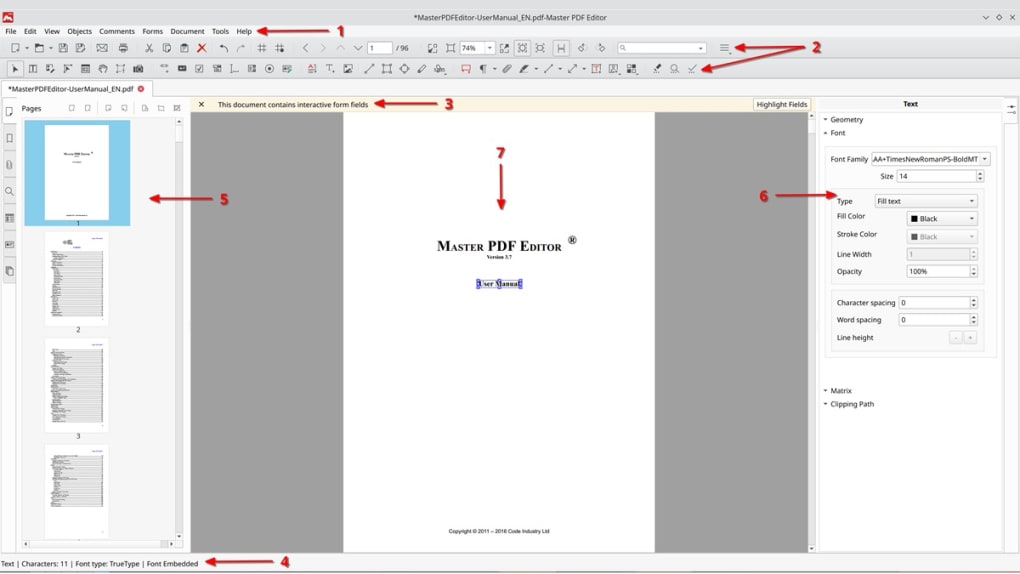
When you launch Master PDF Editor for the first time, a welcome screen offers a quick tour of the UI. You can enable automatic updates, set your preferred language, and choose a default folder for recent documents. The toolbar is fully customizable – drag‑and‑drop icons to create a personalized workspace that mirrors your most‑used functions, such as Text Edit, Form Builder, or OCR.
Typical Workflow
Open a PDF via File → Open or drag the file onto the application window. To edit text, select the Text tool, click on the paragraph you want to change, and type directly. For image insertion, choose Insert → Image, browse to your picture, and position it with the mouse.
Annotations are added from the Comment panel – choose a highlight colour, draw a shape, or place a sticky note. When working with forms, open the Form toolbar, add fields, and set properties like required, read‑only, or default value. If you need to make a scanned PDF editable, click Tools → OCR, select the language, and let the engine process the pages.
Finally, save your work using File → Save As; the free version will append a small watermark, while the Pro licence saves a clean file.
Compatibility and System Requirements
Supported Operating Systems
- Windows 10, 11 (64‑bit)
- macOS 10.14 Mojave and later (Intel & Apple Silicon)
- Linux distributions with GTK/Qt support (Ubuntu 18.04+, Fedora 30+, Debian 10+)
Hardware Recommendations
- Processor: Dual‑core 2 GHz or higher
- RAM: Minimum 2 GB (4 GB recommended for large documents or OCR)
- Storage: 150 MB of free disk space for the application; additional space for temporary OCR files
- Graphics: OpenGL‑compatible GPU for smooth rendering of high‑resolution PDFs
The software is built on the Qt framework, which ensures consistent performance across platforms. Users on older hardware may notice slower OCR processing, but basic editing remains responsive. The application also supports dark mode on Windows 10/11 and macOS, adapting automatically to system theme preferences.
Pros, Cons, and Frequently Asked Questions
Pros & Cons
- Pros
- Comprehensive editing tools that rival premium PDF suites.
- Native support for interactive forms and JavaScript.
- Effective OCR engine for scanned documents.
- Cross‑platform consistency (Windows, macOS, Linux).
- Free version allows full feature exploration (watermark only).
- Affordable Pro licence that removes watermark and adds advanced features.
- Cons
- Watermark on saved files in the free edition may be undesirable for some users.
- Digital‑signature functionality requires an external certificate.
- Interface, while functional, feels slightly dated compared to modern SaaS PDF editors.
- Advanced batch processing features are limited to the Pro version.
FAQ – Answers to Common Questions
Is Master PDF Editor truly free?
The base edition is free for personal use, but exported PDFs contain a small watermark. Purchasing the Pro licence removes the watermark and unlocks additional features such as batch processing and advanced security options.
Can I edit scanned PDFs without buying the Pro version?
Yes. The OCR engine is fully functional in the free version, allowing you to convert scanned pages into editable text. The only limitation is the watermark on the final saved file.
Does Master PDF Editor support digital signatures on macOS?
Digital signatures are supported on macOS, but you must provide a valid digital certificate (e.g., from a trusted Certificate Authority). The software can import PKCS#12 (.p12) files for signing.
How does the application handle large PDF files (over 500 pages)?
Master PDF Editor loads pages on demand, which conserves memory. Editing large documents is smooth on a system with at least 4 GB of RAM; however, OCR on extensive files may take longer.
Is there a portable version for USB drives?
A portable Linux build is available, allowing you to run Master PDF Editor from a USB stick without installation. Windows and macOS do not currently offer an official portable edition.
Expert Review
Rating: 4.5/5
Alexandra Reed, PDF Solutions Analyst
Master PDF Editor delivers a professional‑grade toolbox without the subscription overhead of many cloud‑based competitors. Its form‑building capabilities and OCR engine are particularly impressive for a free product. While the watermark can be a nuisance, the low‑cost Pro upgrade makes the software a solid investment for freelancers, educators, and small businesses that need reliable PDF manipulation on multiple platforms.
Conclusion & Call to Action
In summary, Master PDF Editor stands out as a versatile, cross‑platform PDF solution that balances ease of use with powerful editing features. Whether you’re a student annotating lecture notes, a lawyer preparing legal documents, or a developer designing interactive forms, the tool offers the flexibility you need without forcing a subscription. The free version lets you test every core capability—text editing, OCR, annotations, and form creation—while the affordable Pro licence removes watermarks and unlocks advanced security options. If you’re looking for a reliable, secure PDF editor that works on Windows, macOS, and Linux, download Master PDF Editor today and experience the full feature set for yourself.







